Collecting
Finally, a proper vinyl & CD inventory app for Android
Plastic is a vinyl and CD collection app for Android, now available on Google Play. It keeps your physical music collection together, so you can check what you own, find the edition in your hands and save the albums you want next.
If you've found a collection app you liked only to discover it was iPhone-only, you know the frustration. Plastic brings its approach to collecting to the phone you already have. Here's how to get your collection into it and what you can do once it's there.
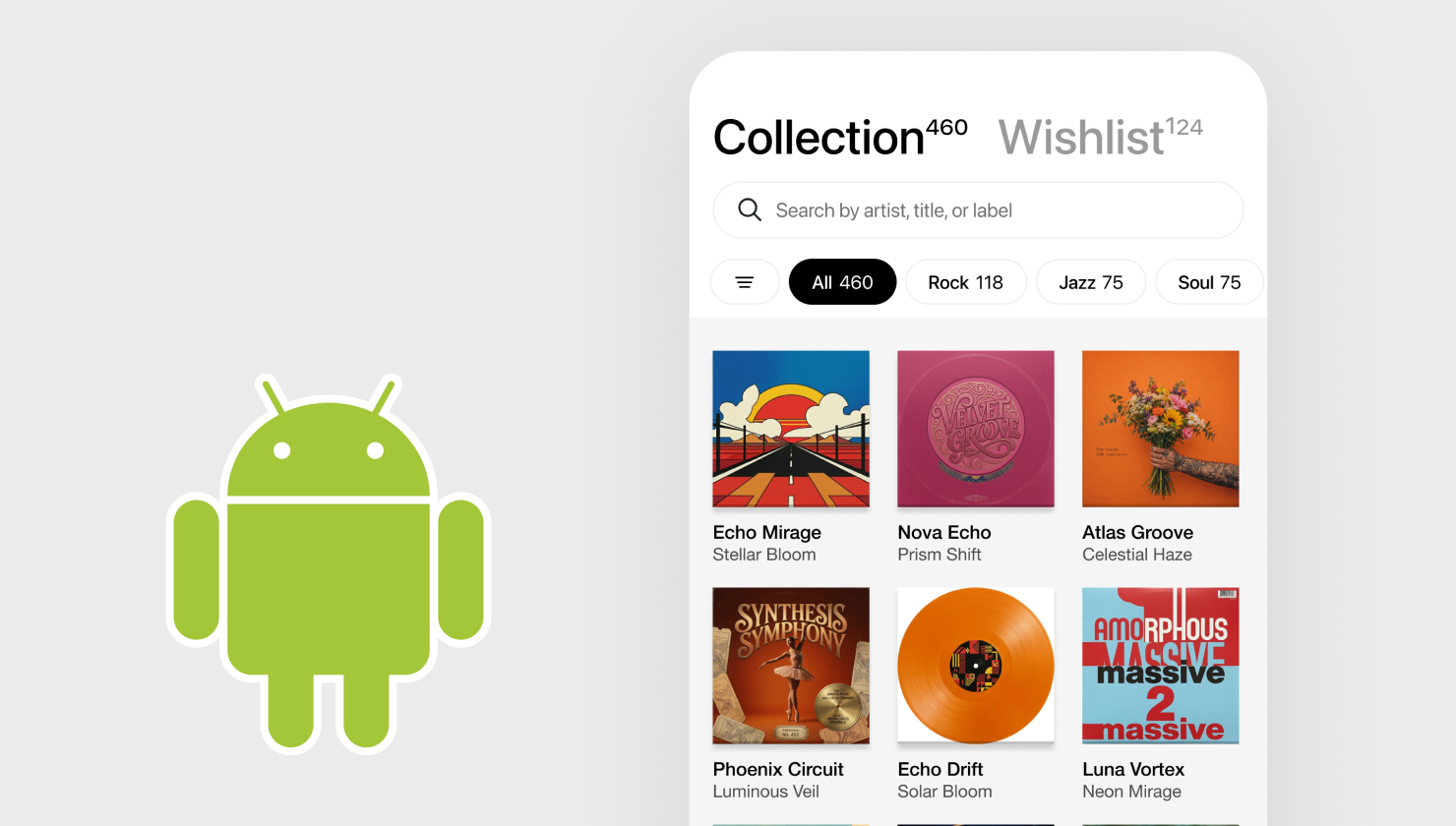
A home for vinyl, CDs and cassettes
A good inventory answers the obvious questions: do I own this album, which edition is it, and where did I put it? But most of us didn't start collecting music because we enjoy maintaining a database. We like the covers, the discoveries and the small decisions about what to play next.
That's where Plastic starts. Your collection is presented through its artwork, with the details of each copy close by. Vinyl, CDs and cassettes belong in the same library. You can keep a mixed collection without treating the CDs as an afterthought or starting a separate list for your tapes.
Plastic received a Red Dot 2026 design award. The design work behind it is about those everyday interactions: making a collection easy to browse, keeping detailed information readable and giving the music room on the screen.
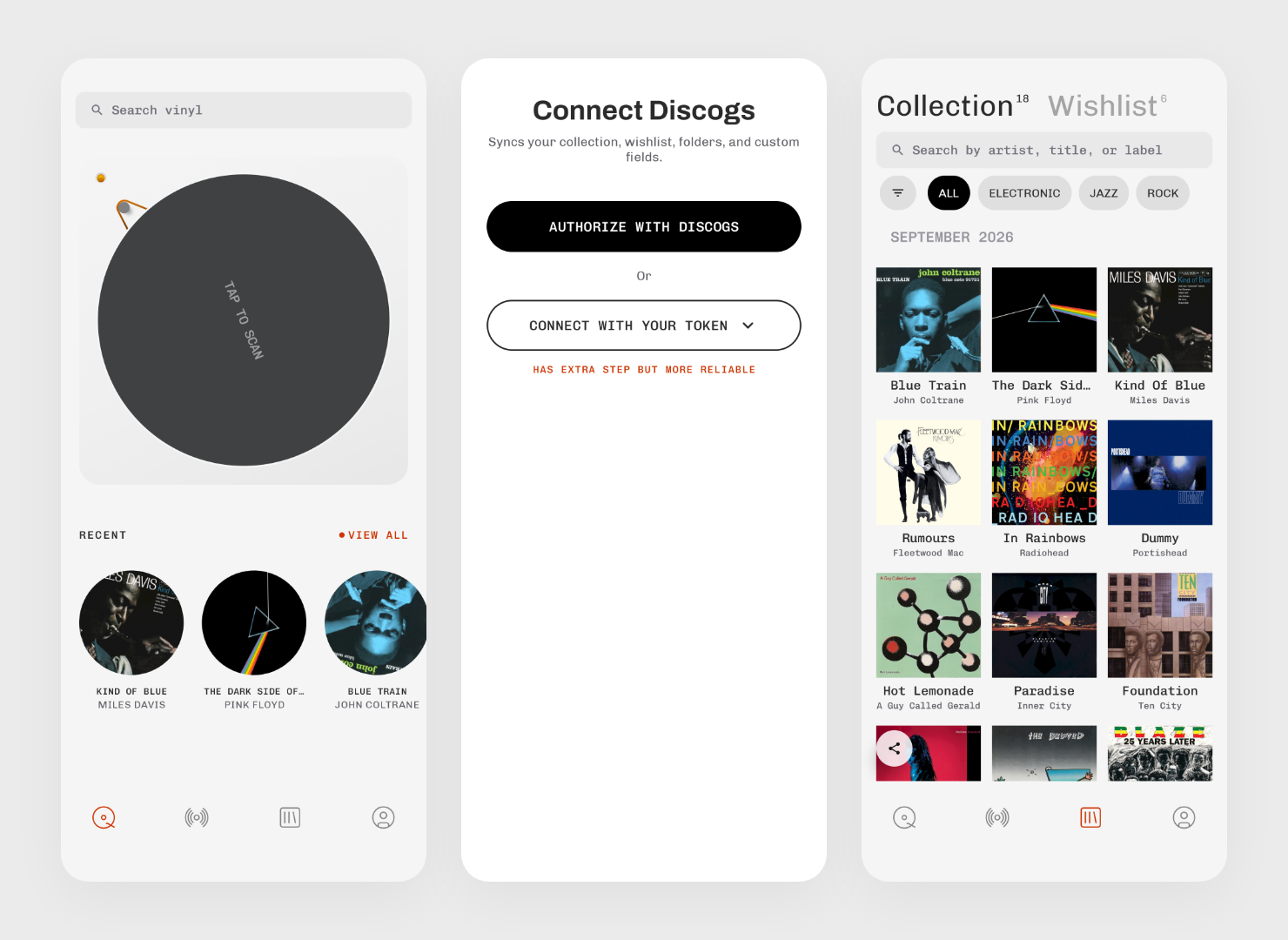
How to catalogue your collection on Android
After installing Plastic, there are two ways to begin.
Already on Discogs? Connect your account to bring in your collection and wishlist. You don't need to scan shelves you've already catalogued. Linked collection and wishlist changes sync both ways, so adding a record in Plastic can keep your Discogs catalogue up to date too.
Starting from scratch? You can use Plastic without a Discogs account. Search for an artist and album title, or open the camera and select Album Cover to photograph the sleeve. Barcode mode gives you another way to find a release when your copy has a barcode.
Open the result, choose the edition that matches your copy and add it to Collection. If it's something you want to buy later, save it to Wishlist instead. Start with a few familiar albums so you can see how your own collection looks before working through the whole shelf.
Cover recognition is especially useful for older records without barcodes. It gets you to the album without transcribing a sleeve, whether you're cataloguing at home or holding an unfamiliar find in a shop.
“The cover scan plus two-way Discogs sync is a really compelling combination.”
u/ikkou_ on Reddit, discussing the iPhone release.
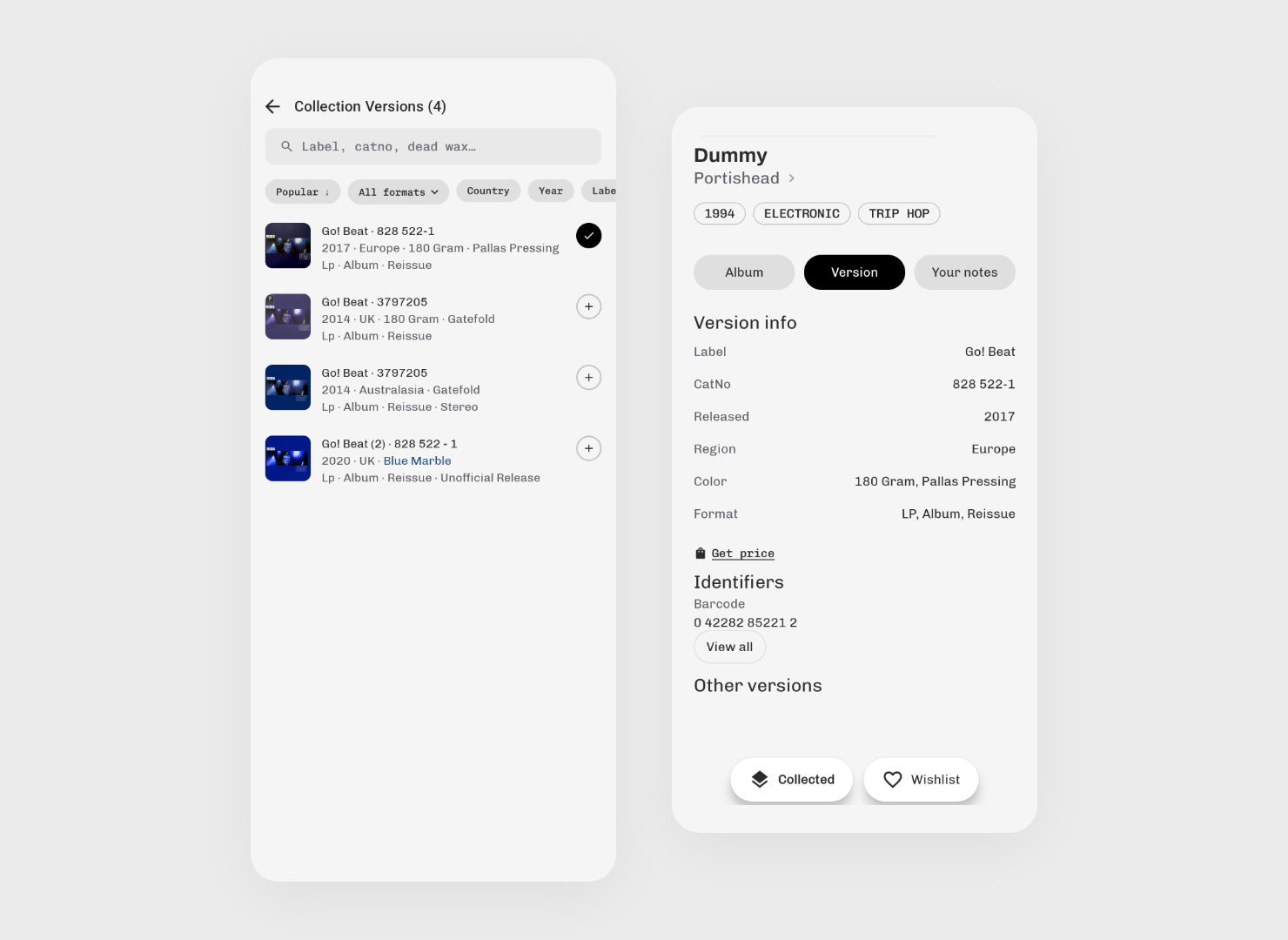
Choose the right pressing or CD edition
The album and your copy are two different things. A CD reissue, an original LP and a coloured repress can share the same artwork. Recognising the cover gets you to the right album; choosing the physical edition takes a closer look.
Plastic's version picker lets you narrow the choices by format, country, year and label. Catalogue numbers and colour descriptions help distinguish similar releases. Open the Version tab to compare label information and identifiers with your copy.
For vinyl, there is another useful clue on the record itself. Type a readable part of the inscription near the centre into Dead wax search to look for matching pressings. You can work from what is actually etched into the disc, then check the resulting release details.
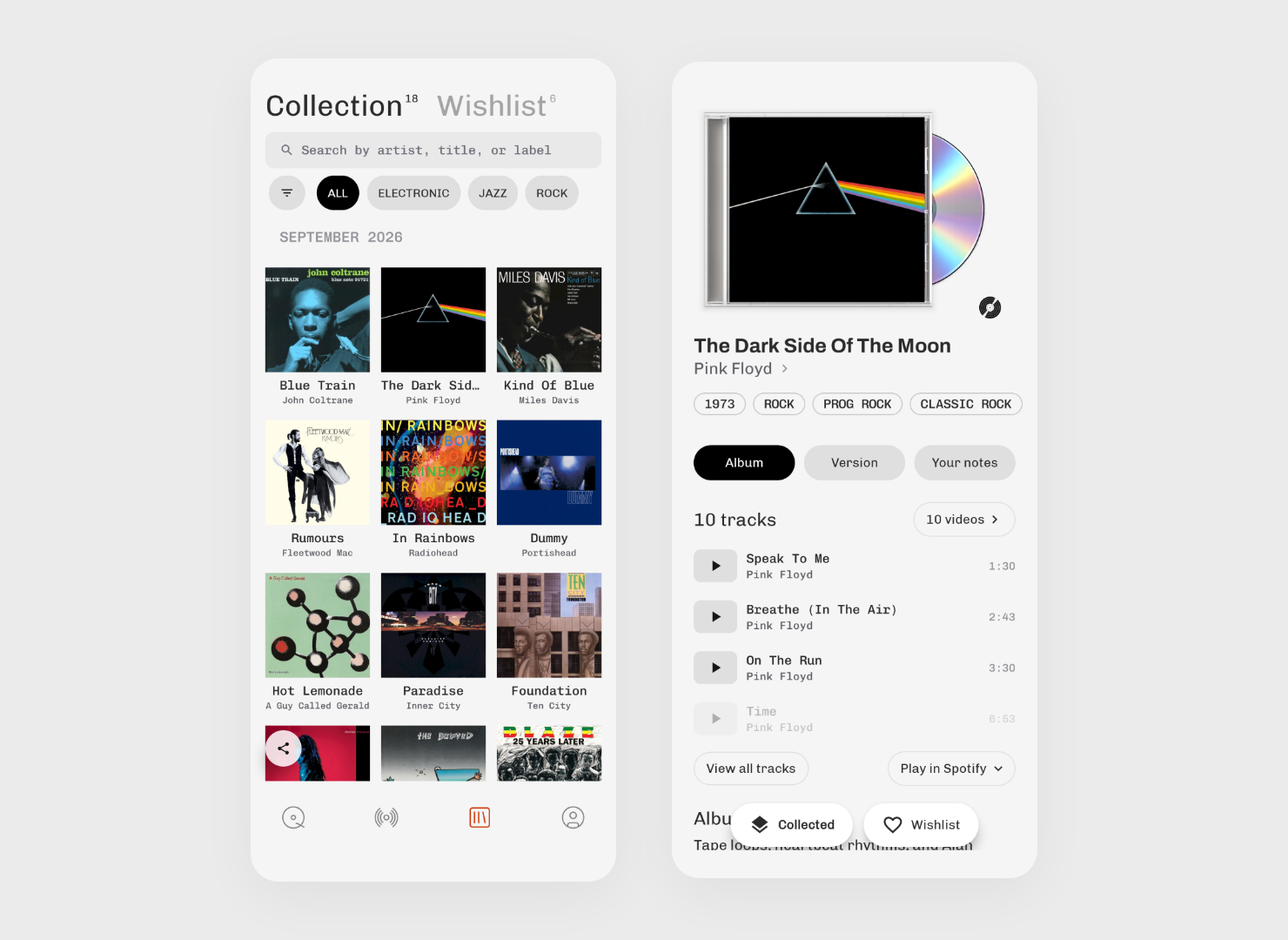
Organise your collection with notes and folders
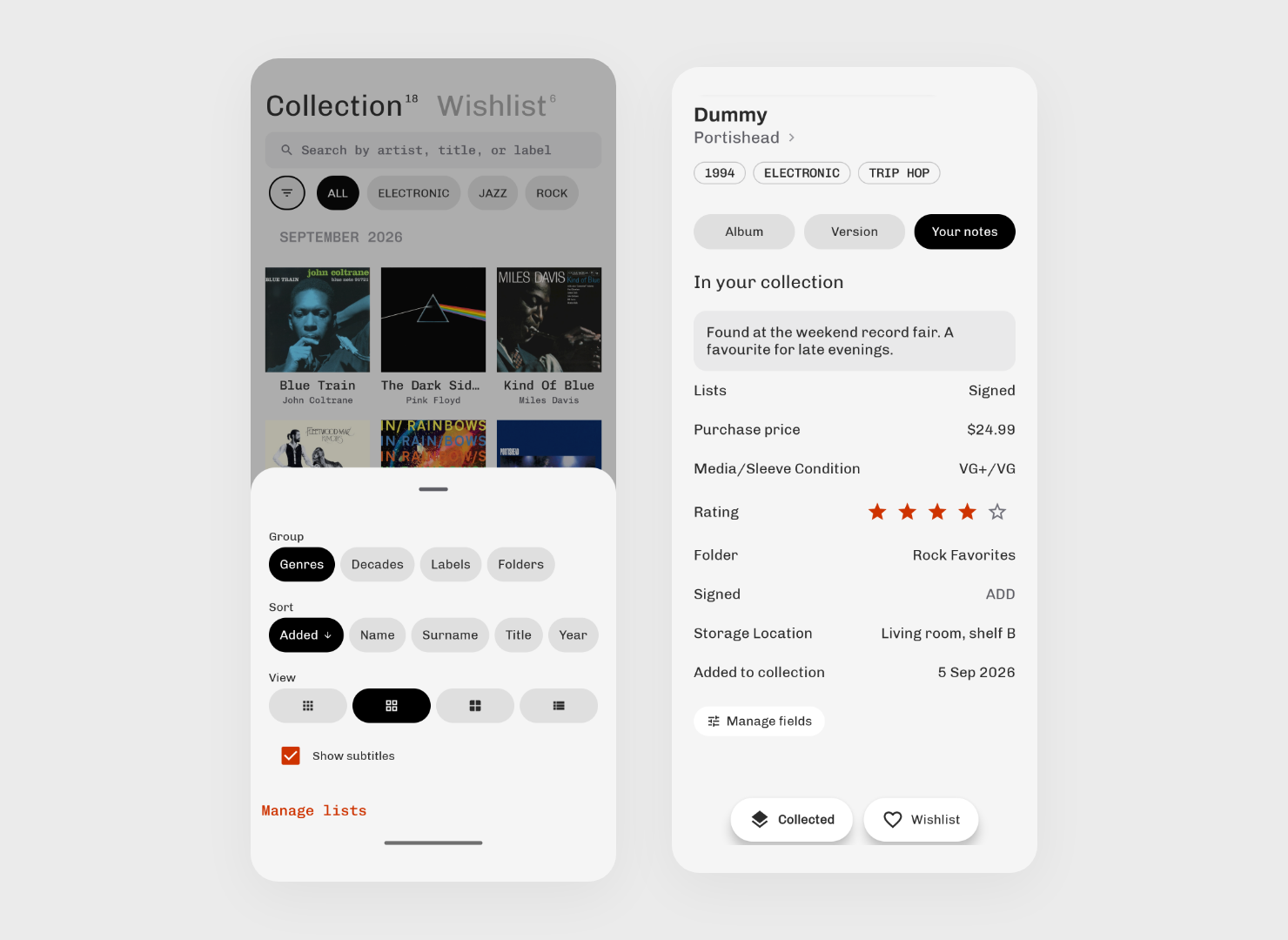
Once an album is in your collection, open Your notes to record the things the public catalogue cannot know: what you paid, the condition of the media and sleeve, your rating or a note about where you found it. Folders, personal lists and custom fields let you organise around your own habits.
Browsing gets the same attention. Choose a compact grid when you want to see plenty of covers, or a larger view when you want to linger. Search within the collection, change its grouping, or sort by artist, surname, title, year or date added. It is easy to switch from finding one particular record to browsing your latest additions.
Listen to track previews and explore albums
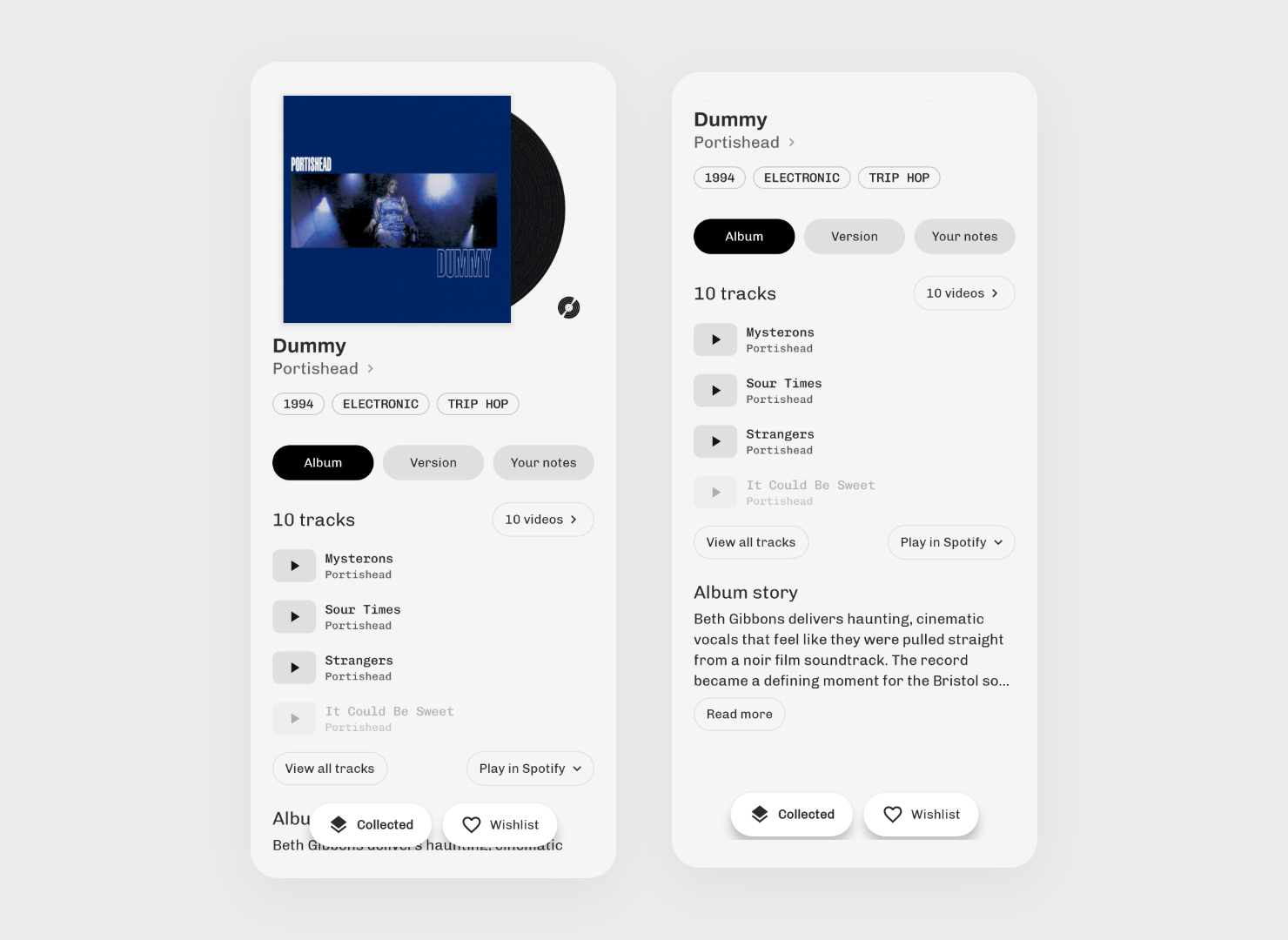
An unfamiliar record can look promising without telling you much about the music. Open its Album tab in Plastic to try available track previews and videos, read the story behind the recording, or follow a link to your preferred streaming service.
You can move between listening and reading without starting a separate search for every track. Similar Vibe suggestions offer somewhere to go next when you like what you hear. It works just as well for a CD from a second-hand shop as for an LP from a record fair.
Rediscover your collection with Radar
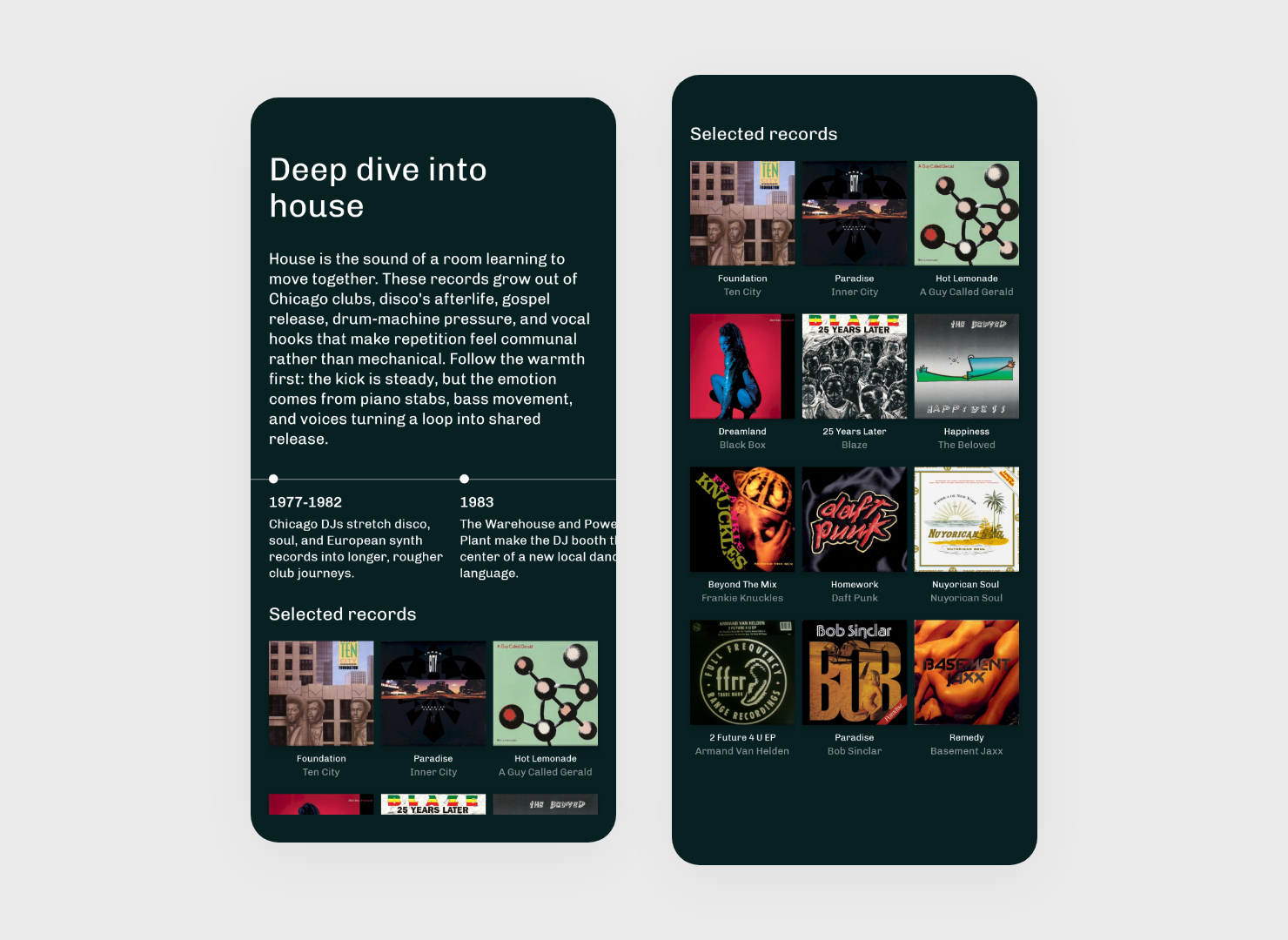
At home, Radar gives you reasons to return to the collection. On this day brings up album anniversaries, which can be a good excuse to play a forgotten favourite. Fresh on Vinyl and New reissues help you keep up with new pressings, while genre Deep Dives connect selected records with the history around them.
A monthly Rewind lets you share recent additions as a video. Collection grids give you a still-image option when you want to show friends what you've been finding.
What is free in Plastic for Android?
Plastic is free to download. With a collection of up to 50 records, you can browse the whole collection without Pro. New accounts also get five camera scans to try recognition; text search and Discogs sync are free.
If your collection is larger, you can still use Plastic for album research, search and anniversary discovery. Pro unlocks browsing the full collection and unlimited camera scanning. Monthly, yearly and lifetime options are available, with your local price shown in the app before you buy.
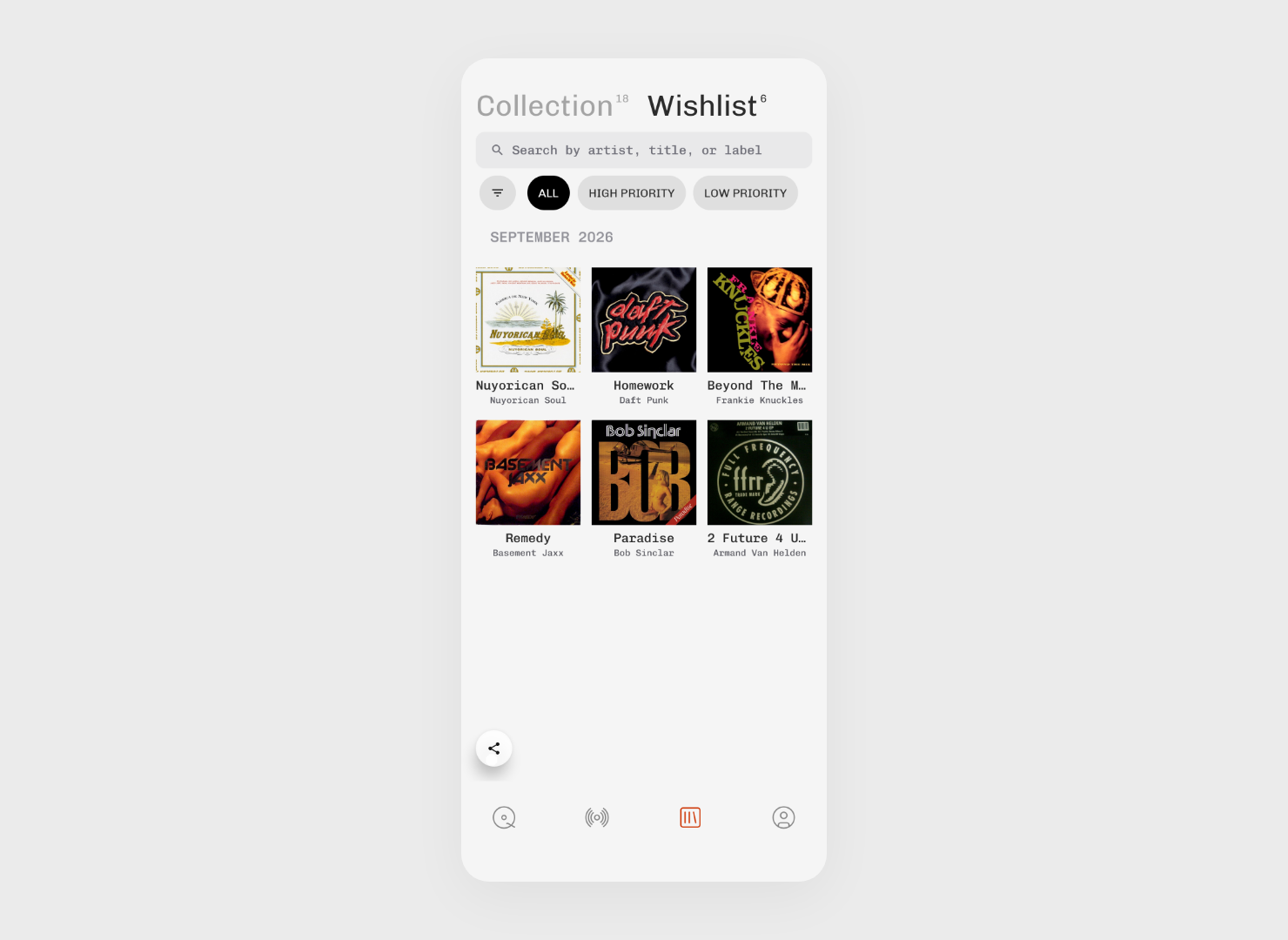
You don't need to catalogue everything on the first evening. Bring in your Discogs collection or add a few records, open an album you know well and try one you've never heard. Plastic for Android is ready for both.