Pressings
Look up a vinyl matrix number or runout inscription
To look up a vinyl matrix number in Plastic, open Search, choose Dead wax and type at least three readable letters or numbers from the runout. Results show recorded inscriptions alongside the label, catalogue number, country and year. Plastic is a collection app for vinyl, CDs and cassettes on iPhone and Android; this search is for vinyl.
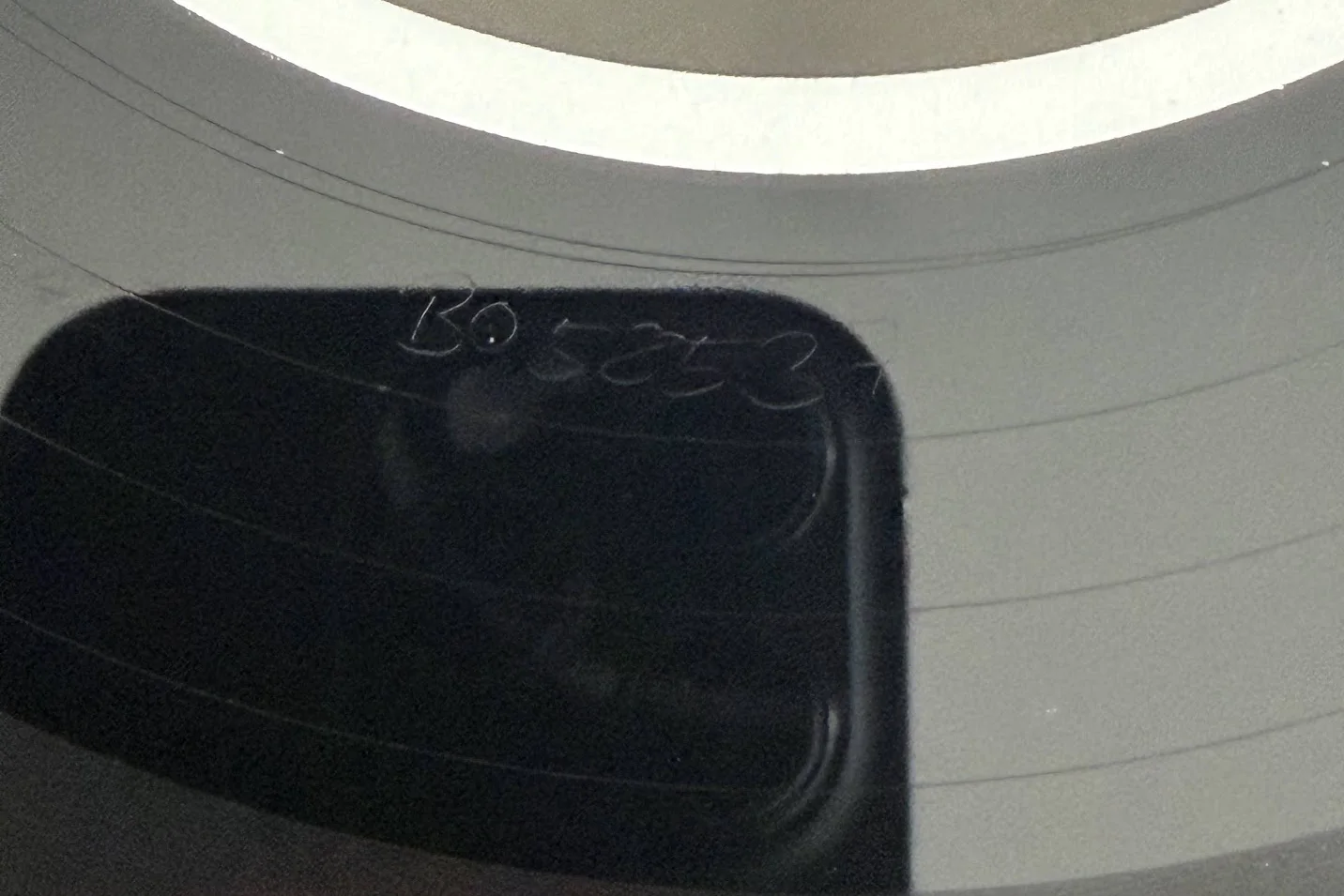
Dead wax search uses the text you type. It does not read etchings from a photo. A clear fragment is enough to start, but compare the full inscription before choosing a pressing.
Where is the matrix number on a vinyl record?
The area between the recorded grooves and the label is called the runout, run-out or dead wax.
It may contain a matrix number or matrix code, a plant code, a cutting engineer's mark or other pressing notes. Record databases often label the complete group as Matrix / Runout. Not every mark is part of the matrix number. Some marks are stamped and others are scratched by hand.
Side A and side B usually have different text, so read both.
What can a runout tell you?
A matrix or runout inscription can narrow a record to one pressing or a small group of pressings. It is useful when several versions share the same sleeve, catalogue number and year.
Check the label, catalogue number, country and sleeve alongside the runout. These details help distinguish copies that look similar. Identifying the pressing is also the first step in checking a record's value.
How do you read a vinyl runout?
- Use light from the side. Tilt the record under a desk lamp. The shallow marks are easier to see when the light crosses them.
- Turn the record slowly. The text can sit anywhere around the label. Read each side separately.
- Write down what you see. Keep the letters and numbers. Plastic ignores spaces and punctuation when it searches, but they can still help when you compare the full runout.
- Type the readable part. If the runout includes a shape or symbol, search the letters and numbers first. Then compare the full result with the record.
How does vinyl matrix number lookup work in Plastic?
Plastic searches its runout index for the letters and numbers you enter. You can use a matrix number or another readable part of the inscription.
Each result shows:
- The recorded runout, with matching text emphasised when available.
- The label and catalogue number.
- The country and year.
The results do not show cover art. Many runouts belong to releases without artwork in Plastic, so the text is more useful here.
Tap a result to open the album page. The record is not added to your collection until you add it yourself.
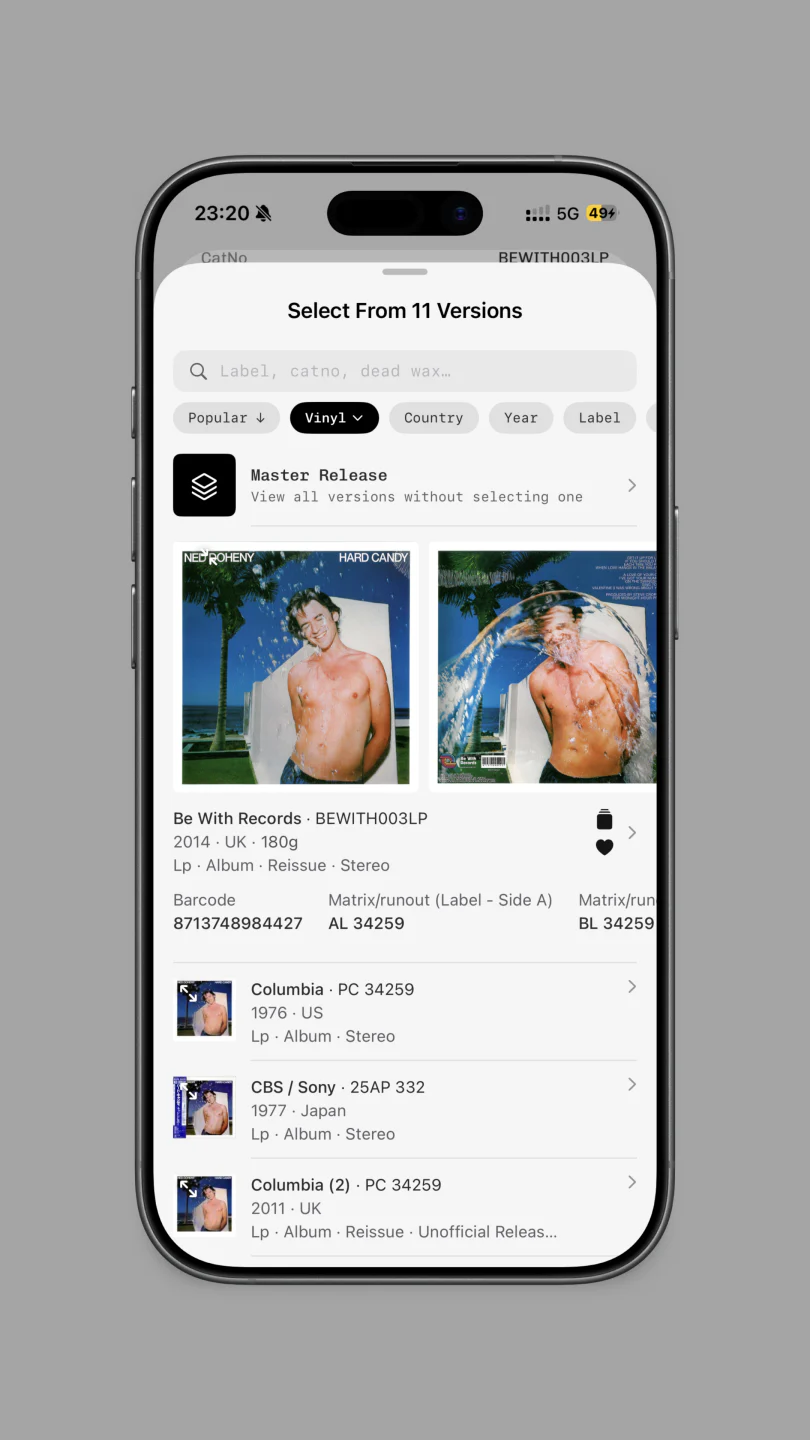
Can I filter a pressing list by runout?
Yes. If you already know the album, open its pressing list and filter by runout, label or catalogue number. This is useful when an album has many versions.
Why might a dead wax search return no match?
A blank result means the search did not find your text in Plastic's current runout index. Check any uncertain characters, then try a shorter fragment you can read clearly. The inscription may have been transcribed differently, or the pressing may be missing from the index.
Short fragments can match several pressings. Add more of the runout when you can.
If several results remain, compare both sides of the record and the label details. A shared fragment alone is not enough to select a pressing.
Vinyl matrix number lookup FAQ
Do I need to pay for matrix and runout search?
No. Search is available on the free tier.
Can Plastic read dead wax from a photo?
No. Dead wax search is typed. Enter at least three readable letters or numbers from the runout.
Is a matrix number the same as a runout?
Not exactly. The runout, or dead wax, is the area near the label. A matrix number is one group of letters and numbers found there, alongside possible plant codes, engineer marks and other inscriptions.
What if the runout contains a symbol?
Type the letters and numbers you can read. Then compare the symbol with the full runout shown in the results.
Does a search add the record to my collection?
No. Search only opens the matching album or pressing. Adding it is a separate step.