Updates
October update: Plastic 2.0, records in colour and Inventory mode
Plastic 2.0 came out as October began, and more followed all month. On iPhone, the app now opens on your collection. A coloured record looks the way it does on your turntable. Then came a camera mode that takes in a whole shelf in one sitting.
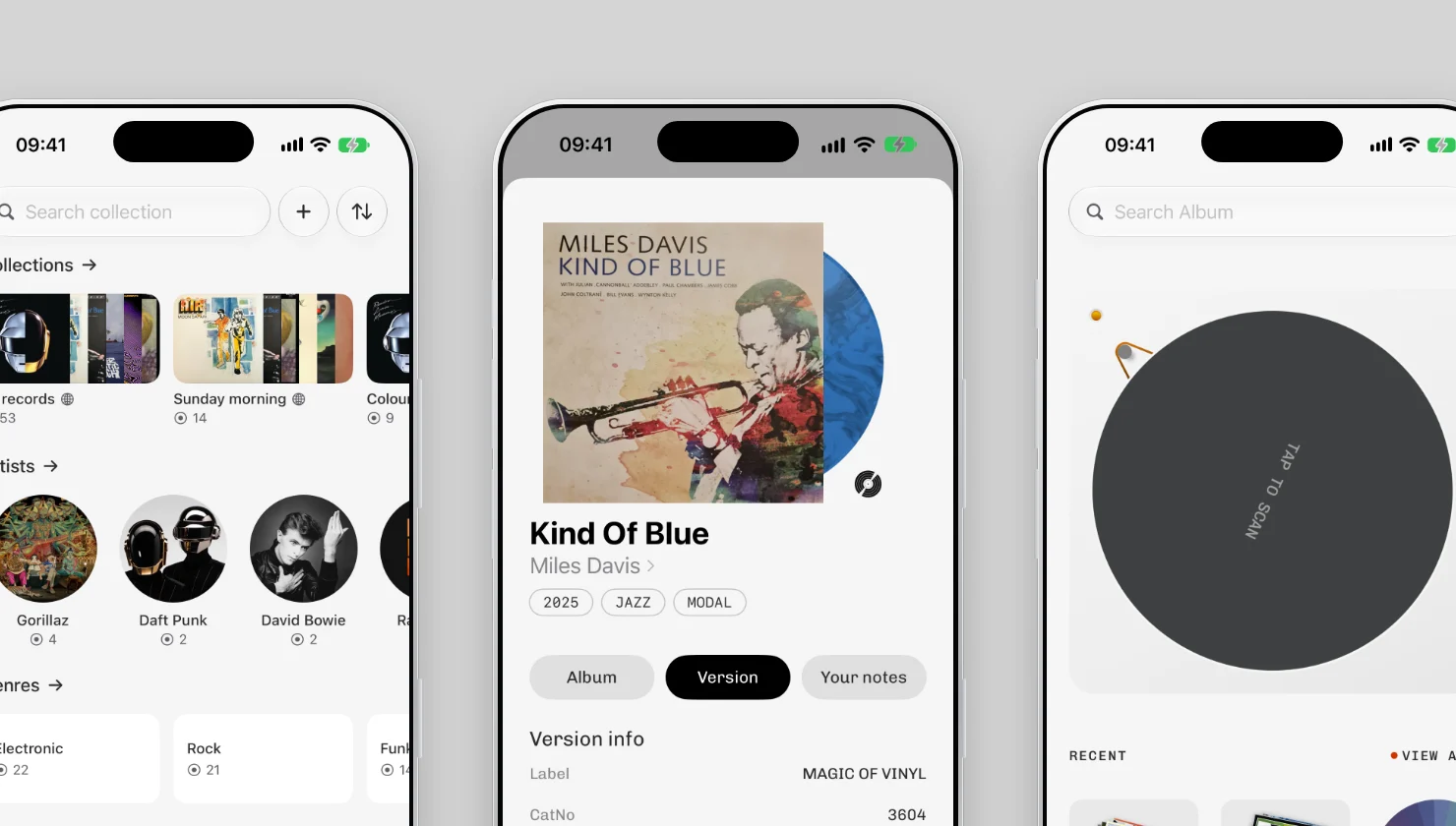
Your collection comes first
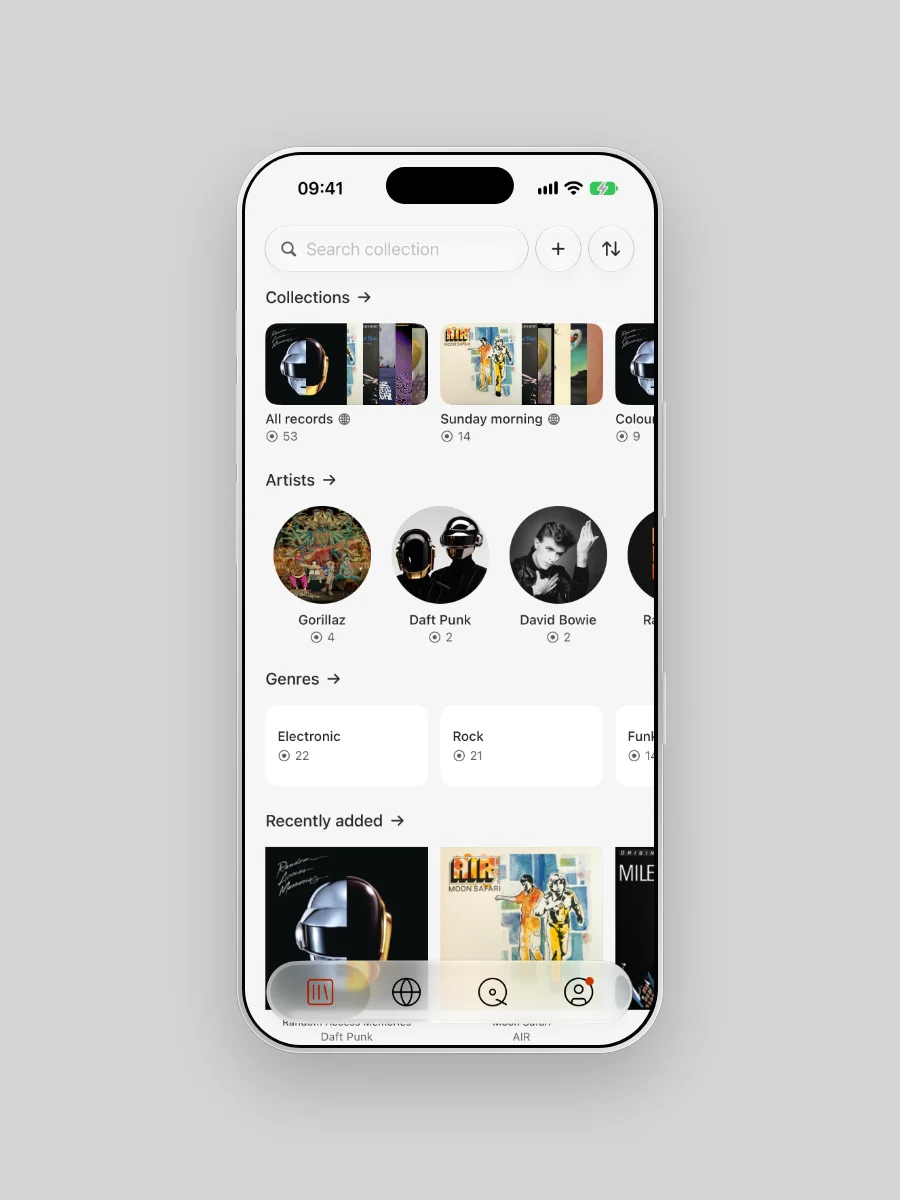
Open Plastic 2.0 and you land on your records. Every way into the shelf gets its own row: your Collections, your folders, genres, artists, labels. Your latest additions and your wishlist get one too.
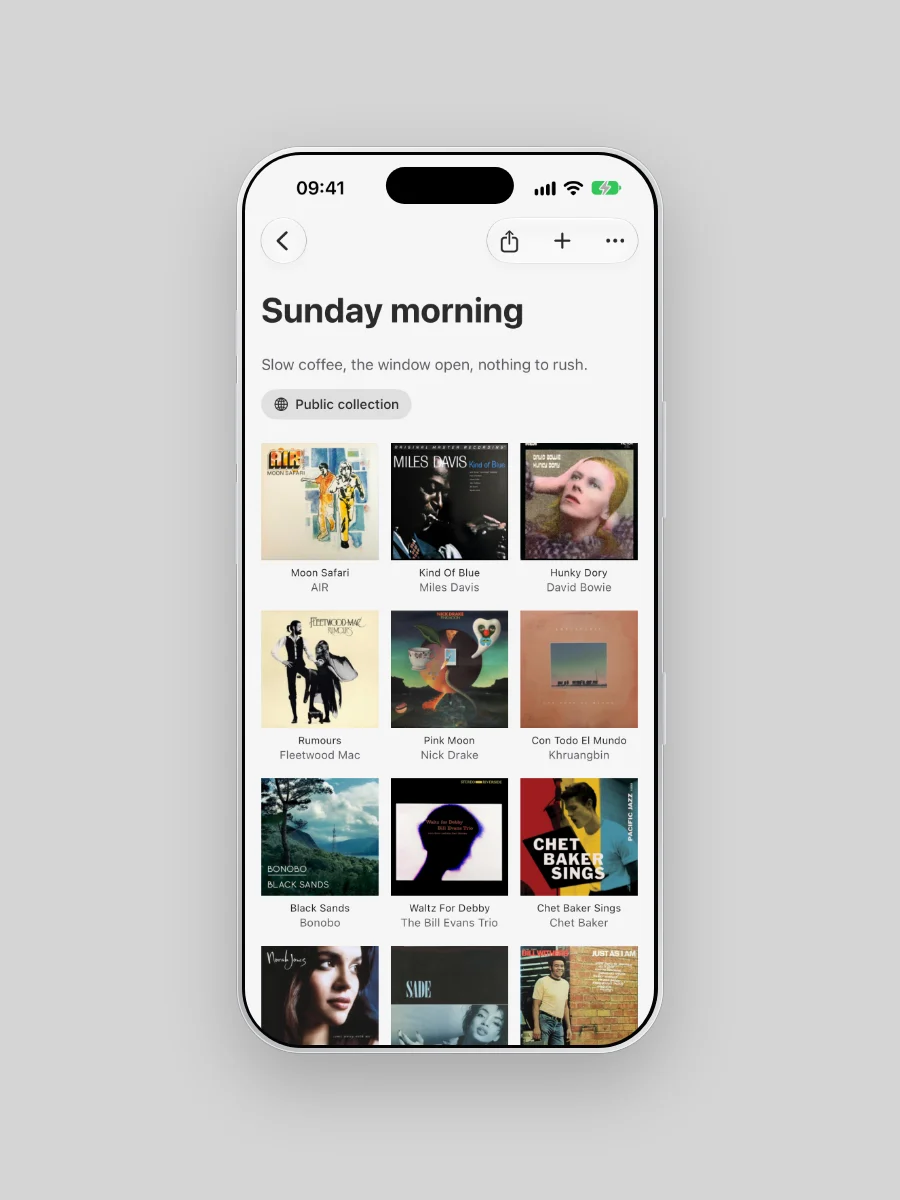
Collections are the new part. They are the groups you already keep in your head: Sunday morning, the long drive, the ones a friend still has. Add a stack of records at once, write a line about the group, and put it in your own order. We wrote more about them in how to organize a collection that outgrew the alphabet.
Your collection lives in Plastic, and we back it up every day. Whatever happens to your Discogs account, your records stay with you.
A page with your name on it
Your shelf has an address: myplastic.app/@yourname. Pick a wall of favourites and choose which Collections to show. Add your wishlist for the people who ask what you want for your birthday. Here is the full tour.
Records in their real colours
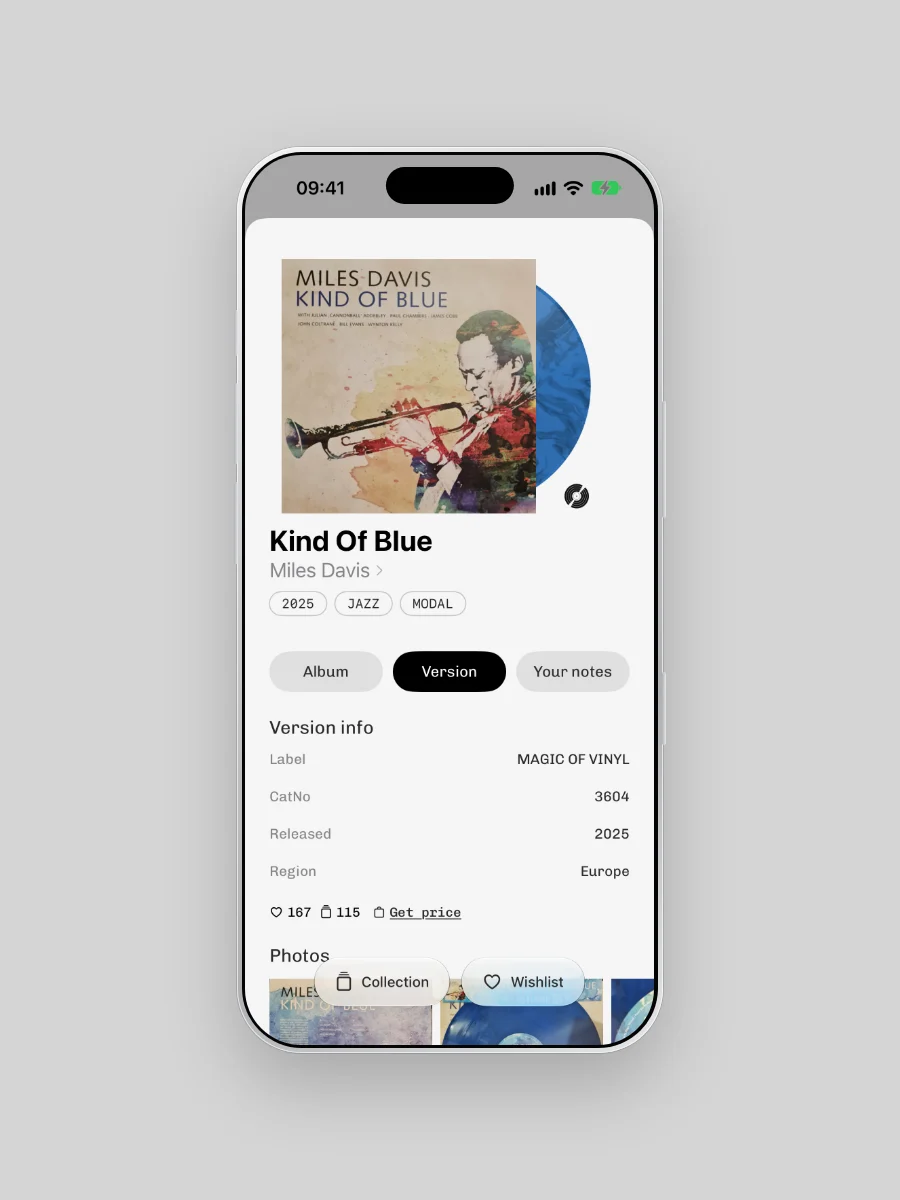
A blue marbled pressing should not look like every other black disc. Plastic draws each coloured pressing in its own colours and pattern: splatter, marble, smoke, swirl, galaxy, split.
When our drawing is off, photograph your own copy. Plastic suggests its colours and its pattern. Keep the result or throw it out. The same colours turn up in your Rewind videos. For how these records are made, read why no two coloured copies match.
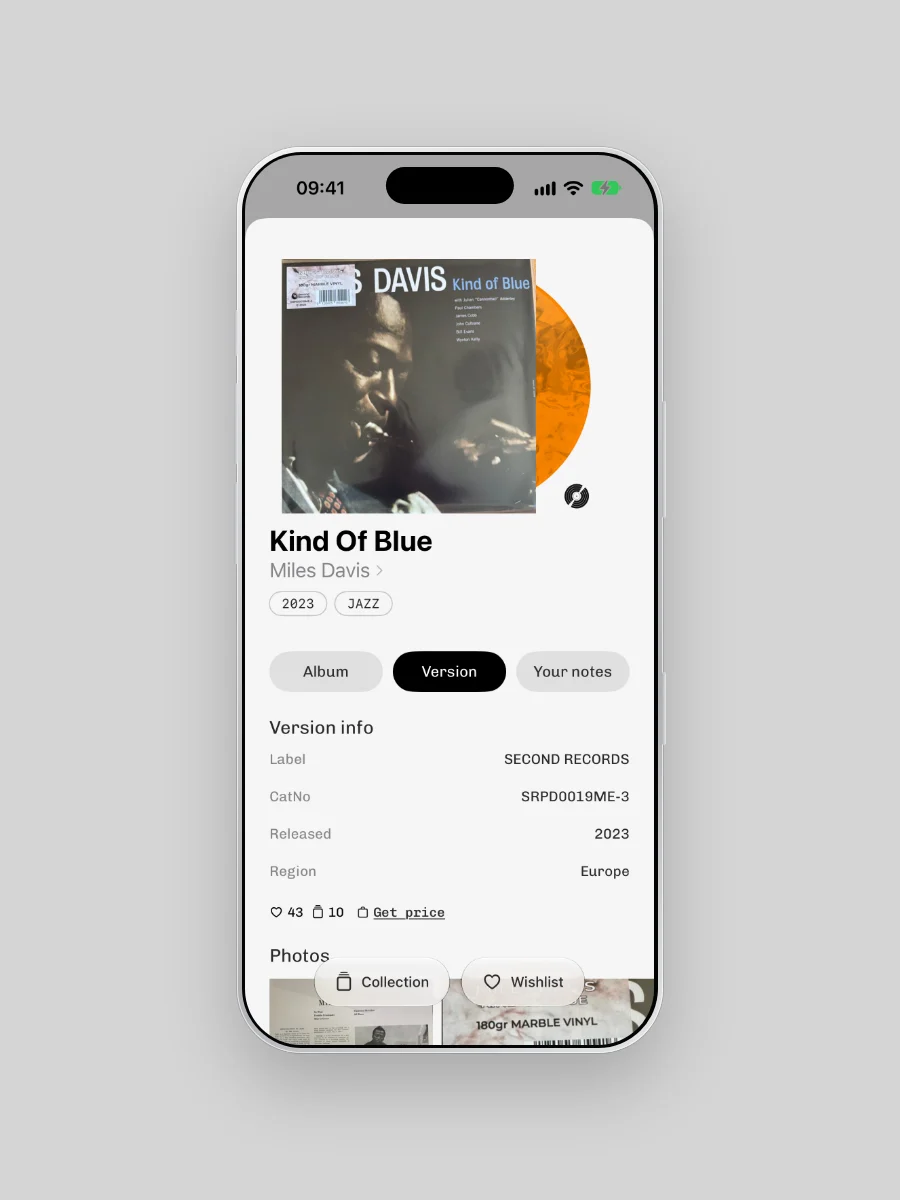
Read the label
Some records come in a plain sleeve, or in the wrong one. Scan the centre label instead. Plastic reads the label and its catalogue number. Then it opens the record or gives you a short list to choose from. The camera reads barcodes live as well, with no button to press.
Inventory mode
Until now, Plastic scanned one record at a time. Inventory mode is for the day you take on the whole shelf. Or the day you come home from a record fair with a full bag.
Scan, and each record waits its turn in one list. That run of records is your haul, and you can share it as a card or a short video.
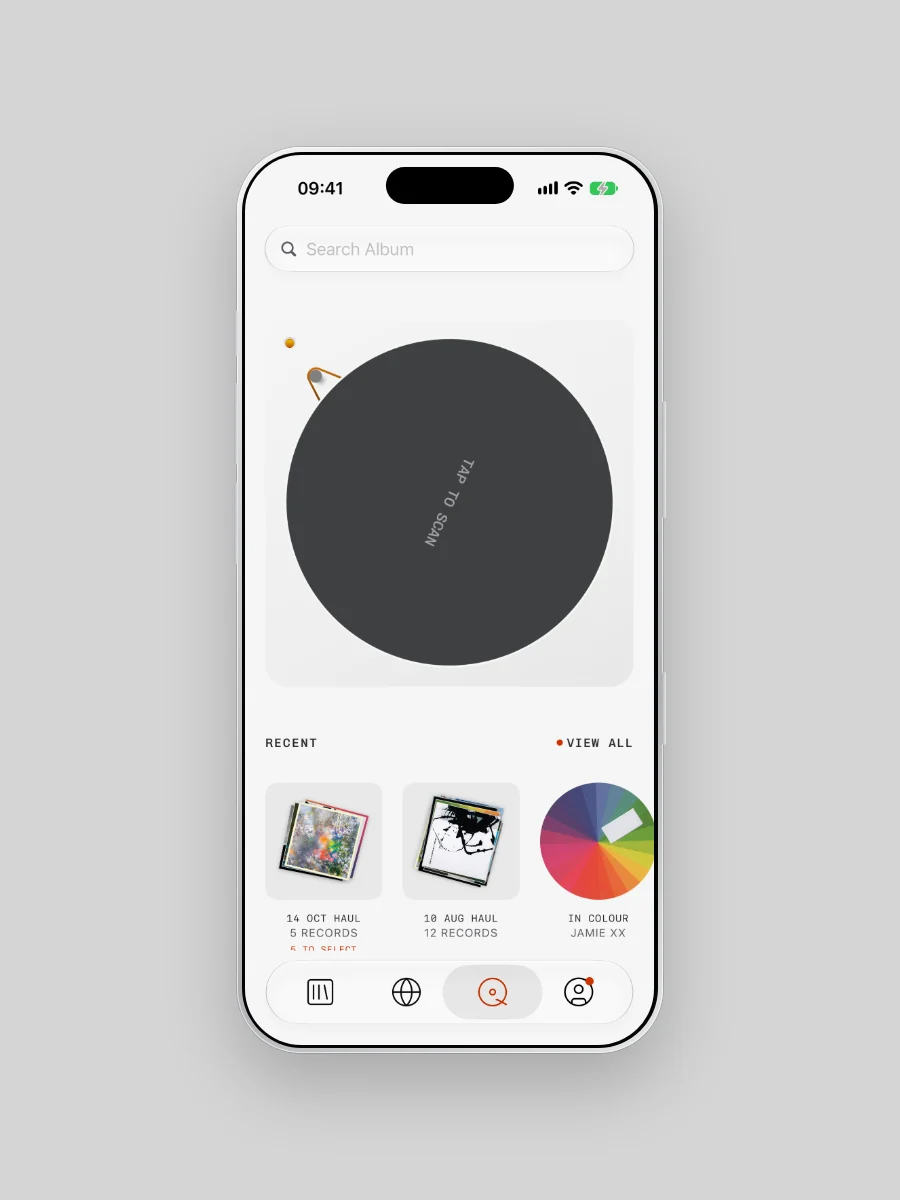
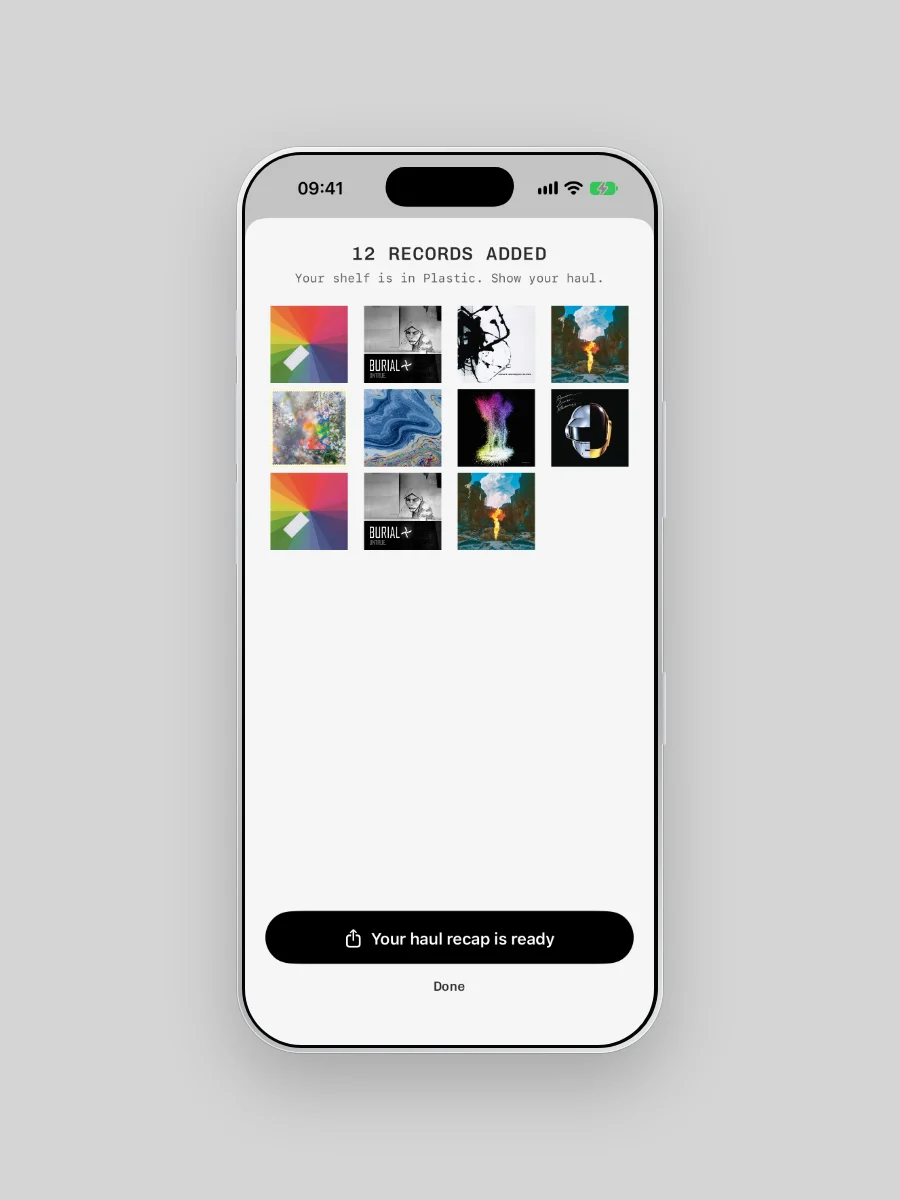
- Open the camera and switch from Dig to Inventory.
- Scan your records one after another.
- Check the list and pick the right pressing where an album has several.
- Add them to your collection and share the haul.